DEEPSOUND P5 Software Installation Guide
This guide provides step-by-step instructions for installing the latest software and configuring the operating system environment on the DEEPSOUND P5 device. Please strictly follow these installation procedures to ensure the proper application of new features and system stability.
1. Pre-installation Preparations
Before starting the installation, ensure that the following items are ready and available.
- Equipment: The target ultrasound equipment where the new software version will be installed (DEEPSOUND P5)
- USB Drive (1ea): A portable storage device to save and transfer the downloaded installation software to the device
- Installation Program: The latest version of the installation program downloaded from the official SEONGSANLAB website or provided link
- USB Hub (1ea): A multi-port hub to connect a keyboard and mouse to the device
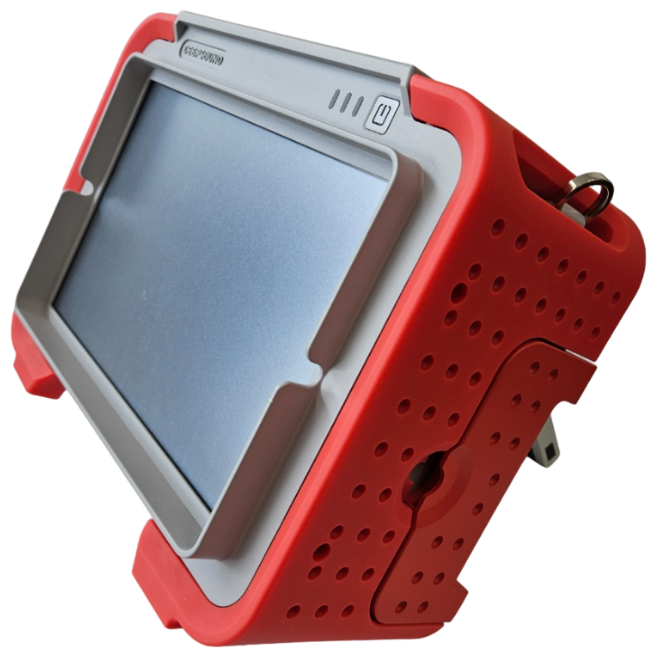
DEEPSOUND P5 Device
USB Drive

USB Hub
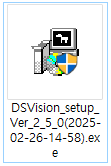
Installation Program
2. Step-by-Step Installation Procedure
[Step 1] Extracting Files and Transferring to USB
- On a separate PC or laptop, access the SEONGSANLAB website and download the latest P5 installation program (
.exe). - Extract the downloaded installation program.
- Copy (move) the entire extracted program folder to the prepared USB drive.
- Connect the USB drive containing the program to the USB hub port located on the right side of the P5 device.
- Additional Guide: To ensure a smoother installation process, please also connect a keyboard and mouse to the USB hub.
USB Drive
USB Hub Connection
Installation Program (.exe)
[Step 2] Accessing Desktop via Settings
The DEEPSOUND P5 software allows users to safely access the Windows desktop using the built-in settings menu while the program is running.
- Click the [Settings Icon (gear)] on the left sidebar (tool menu) of the running P5 software screen to open the settings window.
- Click to select the [Device] tab from the top menu list of the newly opened settings window.
- Click the [Minimize] button located in the bottom-right area of the [Device] tab screen to minimize the program and access the desktop.
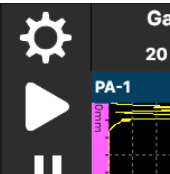
1. Click the Settings (gear) icon on the left sidebar of the main screen
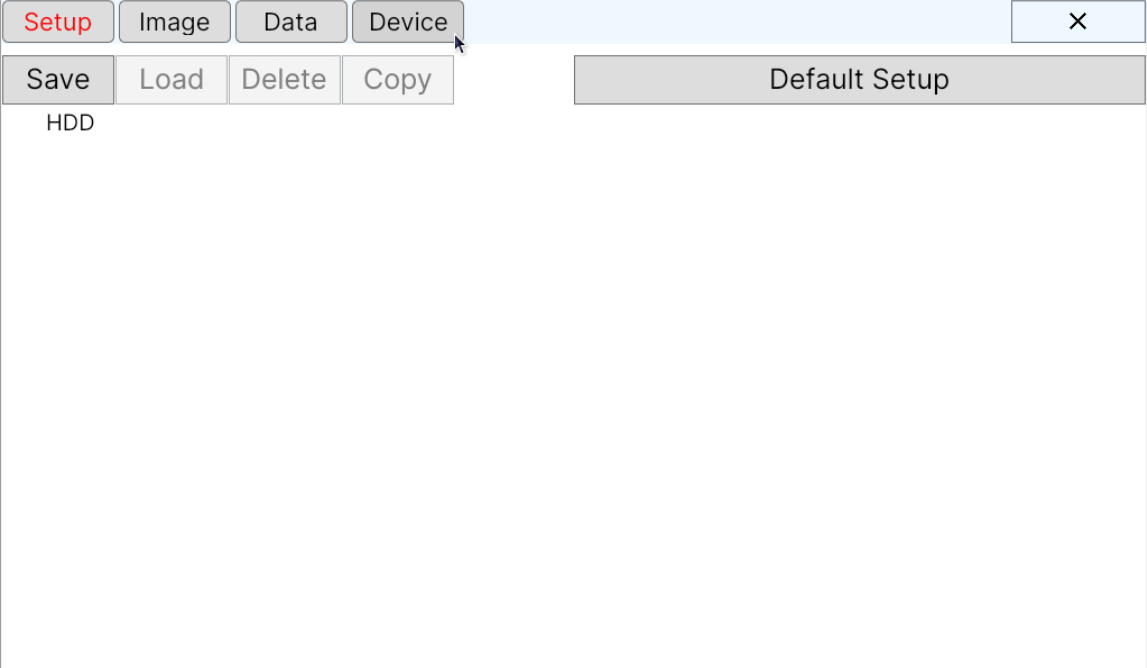
2. Click the 'Device' tab at the top of the Settings window
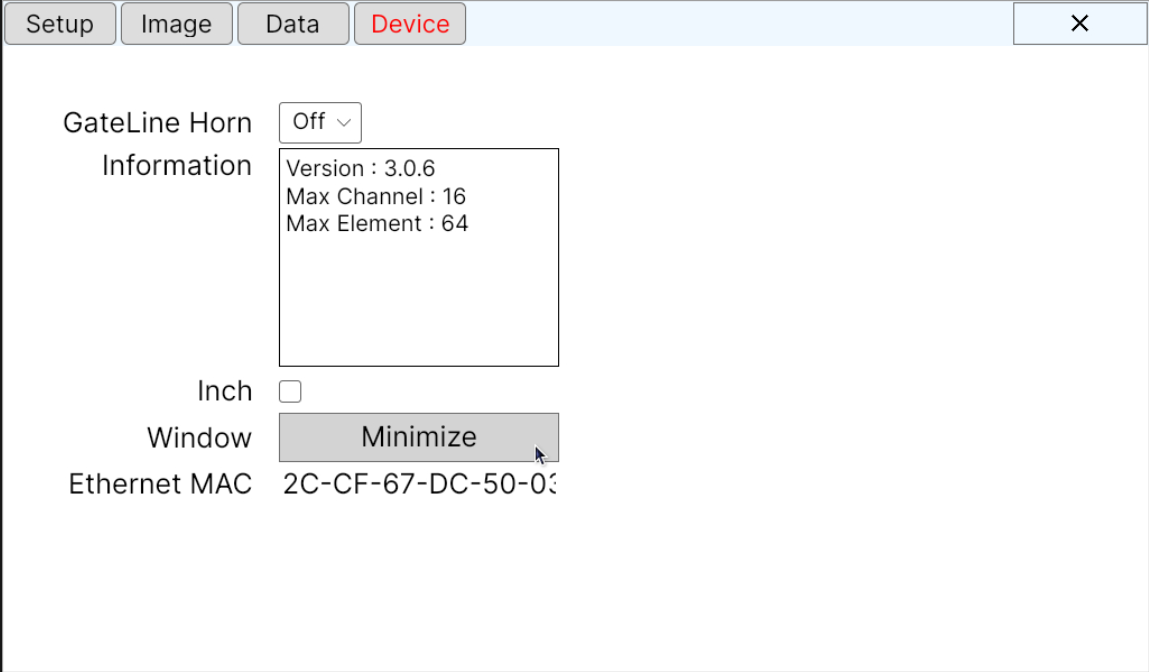
3. Click the 'Minimize' button at the bottom right to access the desktop
[Step 3] Exiting the Currently Running Program
Before installing the new program, you must completely close the existing version running in the background.
- Locate the currently running P5 program icon on the Windows taskbar at the bottom of the screen.
- Hover the mouse cursor over the program icon and right-click it.
- Select [Close window] from the pop-up context menu to safely close the running program.
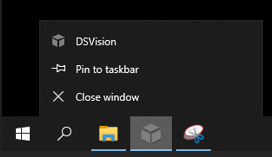
Right-click the program icon on the taskbar and select 'Close window'
[Step 4] Running the New Program Installer
- Open Windows File Explorer and navigate to the folder of the connected USB drive.
- Double-click the new installation program executable file (
.exe) to run it. - When the installation wizard window appears, click the [Install] button in the center to proceed with the installation.
- If prompted to specify the installation path (Destination Folder), leave the path as the default value without modification and click [Next] or [Install] to proceed.
- Note: If the system is intended to be operated remotely or over an external network, you may specify a custom path under the guidance of a support engineer.
- Wait for the installation progress bar to reach 100%.
Installation Program Executable File
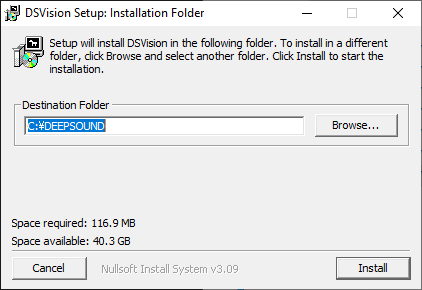
Click the Install button to proceed with the installation
[Step 5] Rebooting the Device and Verifying the Software Version
After the installation is complete, you must reboot the device to apply the system configurations and ensure operational stability.
- Close the installation completion window and clean up all other open windows.
- Turn the P5 device’s power switch off (Power Off) and then back on (Power On).
- Once the device reboots, the newly installed P5 program will run automatically.
- When the program runs successfully, check the bottom-right corner of the main screen to verify that the installation was successful.
- Cross-check that the version information shown in the highlighted box matches the newly upgraded version.
Version Display Area on the Main Screen
Your DEEPSOUND P5 device is now ready to operate with the new features and enhanced stability. If you encounter any issues during operation, please contact our technical support team.