DSK User Manual
Software Development Kit DSK — DSK Version 2.0
Copyright ⓒ 2026 / SEONGSANLAB Co., Ltd.
This user manual is protected under copyright law. No part of this manual may be reproduced, transmitted, distributed, translated, or converted into any electronic media or machine-readable form without the prior written consent of SEONGSANLAB Co., Ltd. The contents of this manual and program performance are subject to change without prior notice for improvement.
All rights reserved
API Reference for DSK 1.0
Release 2.0
This user manual is protected under copyright laws. No part of this manual may be reproduced, transmitted, distributed, translated, or converted into any electronic media or machine-readable form without the prior written consent of SEONGSANLAB Co., Ltd. The contents of this manual and program performance are subject to change without prior notice for improvement.
The contents of this guide are provided for informational purposes only, subject to change without notice. SEONGSANLAB Co., Ltd. assumes no responsibility or liability for any errors or inaccuracies that may appear in the informational content contained in this guide. Please note that existing images you wish to include in your project may be protected by copyright law and require permission from the copyright owner before use.
References to company names, company logos, and user names in sample materials or sample forms included in this software are solely for practical use and do not represent actual organizations or individuals.
All other trademarks and copyrights are the property of their respective owners.
Registered Trademarks
- The DEEPSOUND logo is a registered trademark of SEONGSANLAB Co., Ltd.
- Microsoft, MS-DOS, and Windows are registered trademarks of Microsoft Corporation.
Contact Information
- Head Office: SEONGSANLAB Co., Ltd. (P: 02-2039-5725 | F: 02-2039-5726)
- Address: #1318, 13F, Ace High Tech City, 52 Gongdan-ro 140beon-gil, Gunpo-si, Gyeonggi-do, Republic of Korea
- Website: www.dspaut.com | Email: admin@dspaut.com
- Quality: All work is performed in accordance with SEONGSANLAB Co., Ltd. quality standards.
Caution
SEONGSANLAB Co., Ltd., 2026. Rev 2.0. All information in this document is subject to change without prior notice.
DSK Version Check List
| Version | Check List |
|---|---|
| 1.0 | Initial DSK Version created |
| 1.3 | Added Multi Channel configuration function |
| 1.4 | Added Multi Board configuration function and expanded Focal Law Angle Resolution |
| 1.5 | Added UT Group configuration function and expanded UT features |
| 2.0 | Removed USB communication and transitioned to LAN communication |
PREFACE
What does this Manual mean?
This document is a general technical design document for use with DSK. It provides guidelines and template materials to offer technical support when building projects or DSK software development kits.
Who is the target audience for this Manual?
This document is intended to assist operators familiar with the Microsoft C/C# language. The target audience should have basic knowledge of the C/C# programming language. This manual supports efficient work for ultrasonic software developers.
The remaining sections (DSK/API/…) cover the APIs used to configure DSK development projects.
Under normal circumstances, most text in this document can be retained, modified, or deleted.
Text in different fonts represents sample code written for the relevant API section.
This document was written using MS Word, and the final version of this document is distributed in PDF format.
BASIS OF THIS DOCUMENT
The following introductory section describes how to design a system that can be developed with DSK. This sets standards and aims to create a consistent approach to the design and development of systems across DSK, thereby benefiting from consistency in API development and system build and deployment methods.
1. INTRODUCTION
1.1 DSK Introduction
DSK stands for Deepsound Software Development Kit and is a program that replaces the existing DS Gear SDK.
DSK generates ultrasonic signals from a probe for non-destructive testing, and collects and analyzes the returning signals. It controls the hardware according to the system to be inspected, processes the collected data, and provides various APIs to help easily construct non-destructive testing systems.
Purpose
The purposes of this document are as follows:
- Describe background applications before installing the DSK program
- Describe DSK operation
- Describe how to use the DSK API
Users should have prior knowledge of software architecture, programming languages (C#/C), and Microsoft Visual Studio.
Development Environment
- Windows 10 x64 recommended
- Microsoft Visual Studio 2017 or higher
- .NET Framework 8.0
2. DSK
2.1 BACKGROUND SETTING
Before installing the Tutorials program, you must configure the background environment.
The settings are organized in the provided program folder under the list of required installations, and proceed sequentially through the methods below.
List of required installations:
- .NET Framework 8.0
- Log2console
- Vcredist
2.1.1 .NET Framework 8.0 Installation Method
The DSK program is configured in C#. Please install this program for development.
Important: Running it with a lower version may cause issues.
2.1.2 Log2console Installation Method
The Log2console program plays an important role in DSK development. It reads problematic code and locations during development, making the work much easier.

Log2console Program Basic Configuration Method:
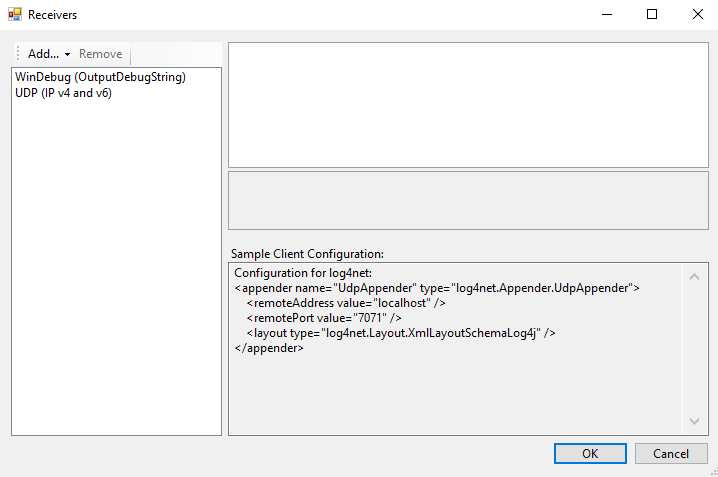
When running Log2console after installation, a prompt to perform basic configuration will appear. Configure it as follows:
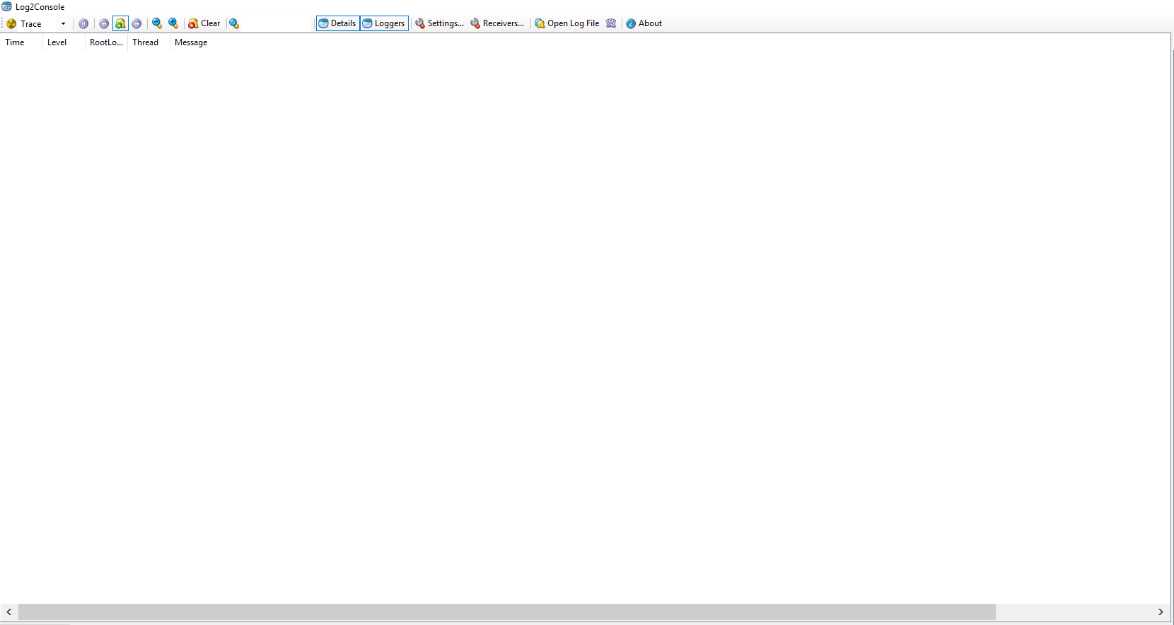
#1 Click the button in the top Tool menu.
#2 A window will open upon clicking.

#3 Click Add.
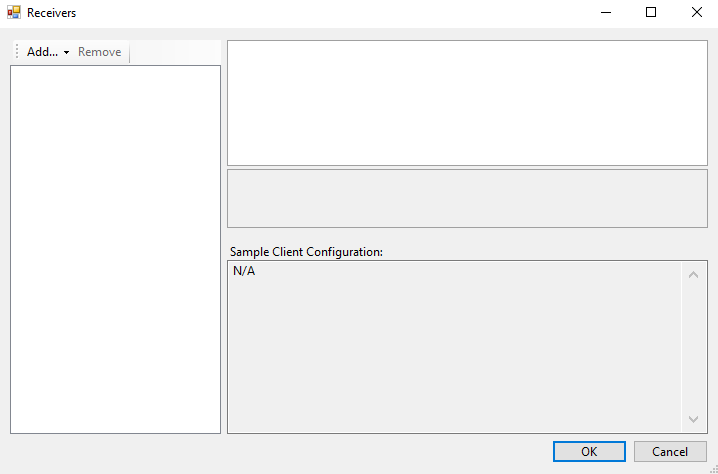
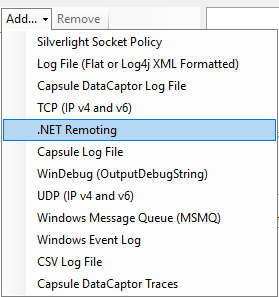
#4 Select "UDP (IP v4 and v6) / WinDebug (OutputDebugString)" respectively to add them to the list.
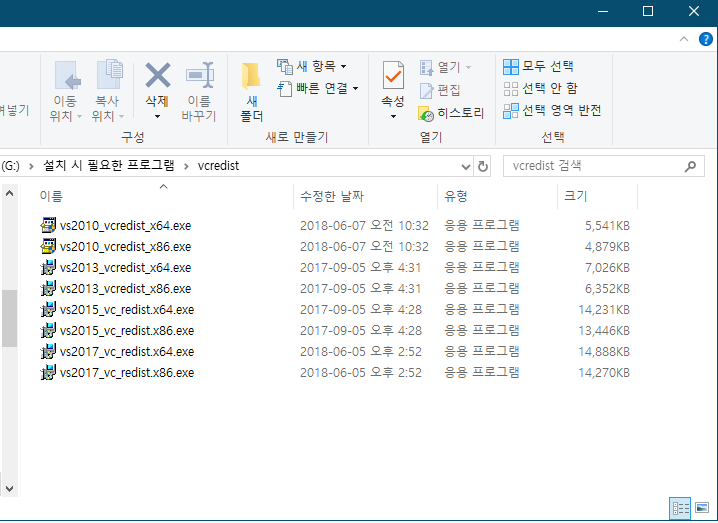
2.1.3 Vcredist Installation Method
Visual Studio 2017 is recommended, and Vcredist must be installed to minimize problems during installation.
The installation program is in the provided folder. Please check your Windows operating system and install it.
2.2 Program Installation
This section describes DSK installation and uninstallation. The program runs installation on the Host-PC. There are two version files along with the software installation. The DSK x86 installer is for 32-bit (x86) Windows operating systems, while the DSK x64 installer is designed for 64-bit Windows operating systems.
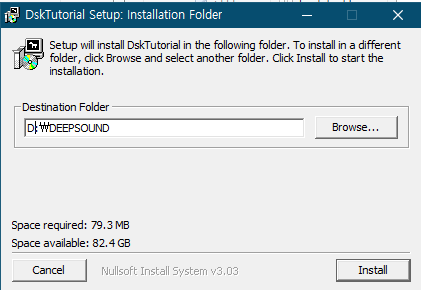
Software installation is as follows: Prepare Installation (DskTutorial_setup.exe)
Click Next → Install button → Click Close when complete.
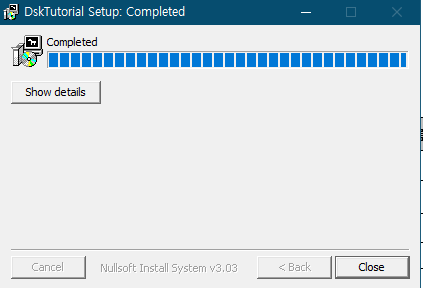
Once complete, the DskTutorial folder will be created in the DEEPSOUND installation path.
2.3 Folder Descriptions
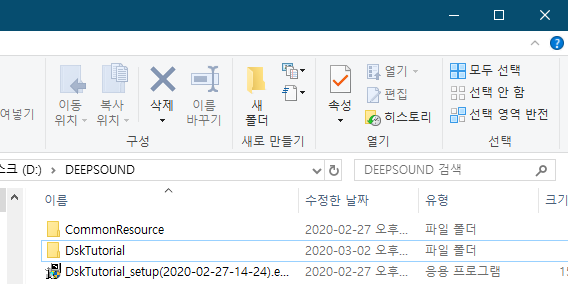
When DSK installation is complete, folders will be created as shown in the image below.
| Folder Name | Content |
|---|---|
| 01-InitDevice | Contains 01-InitDevice.csproj source files |
| 02-SScan | Contains 02-SScan.csproj source files |
| 03-AScan | Contains 03-AScan.csproj source files |
| 04-Inspection | Contains 04-Inspection.csproj source files |
| 10-SimplePAUT | Contains 10-SimplePAUT.csproj source files |
| Bin | Contains Release, RES folders, and program .exe files |
| DskCommon | Contains .dll source files |
| DskTutorial.sln | Visual Studio project file |
3. TUTORIAL
3.1 TUTORIAL 1: Visual Studio DSK Application Method
DSK is recommended to be developed based on Visual Studio 2017. Proceed as shown in the image below after installation.
#1 Run Visual Studio 2017.
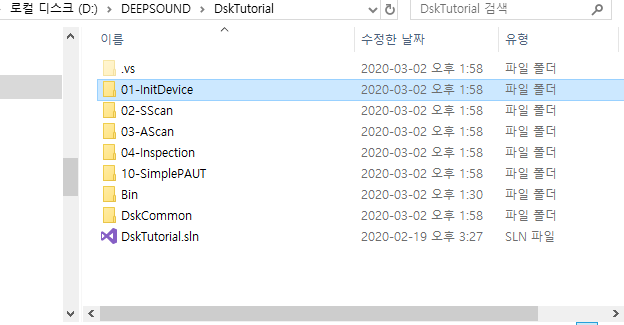
#2 Click the top menu “File” -> Open → Click Project/Solution (Ctrl+Shift+O).

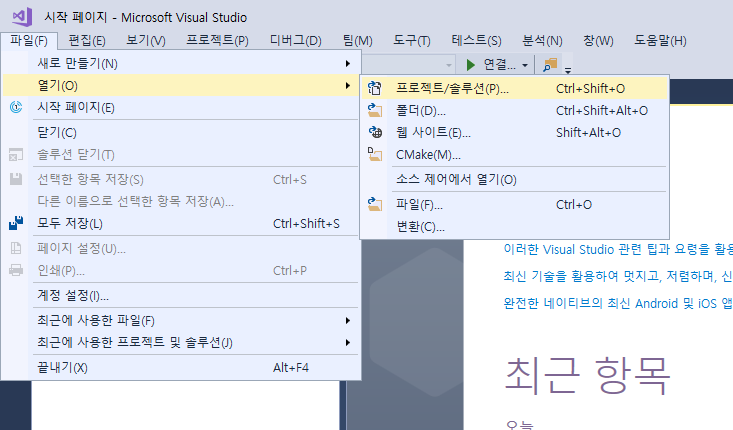
#3 Click the DskTutorial.sln file inside the DskTutorial folder.
3.2 TUTORIAL 2: Program Build Method
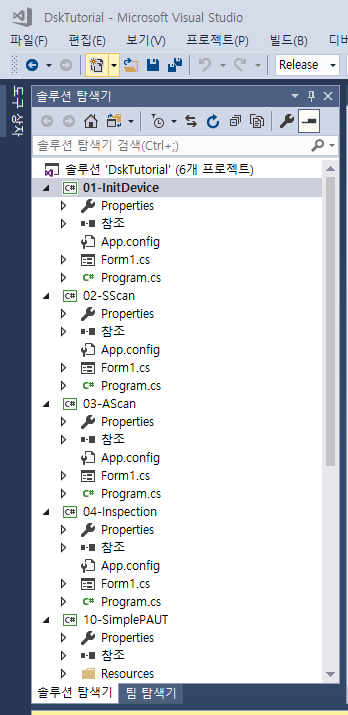
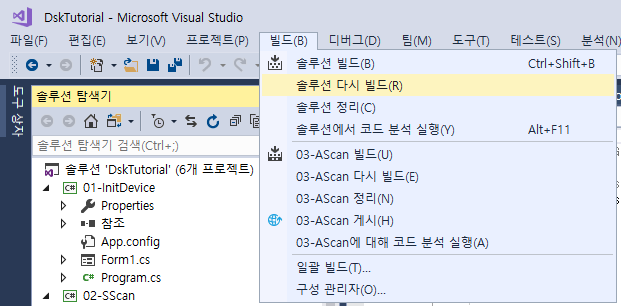
After loading DskTutorial.sln into Visual Studio, you can see that 6 projects are registered in the Solution Explorer.
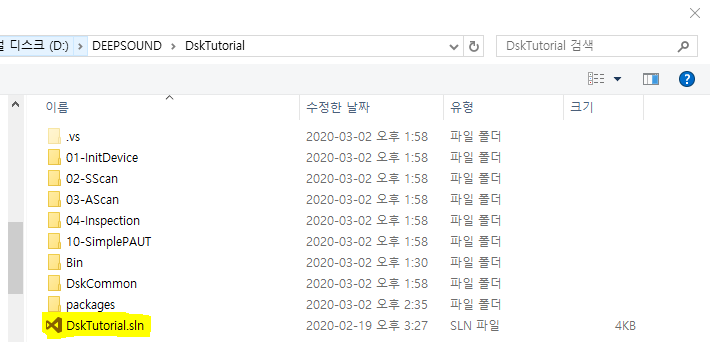
Before proceeding, select Build from the top Tool menu and run Rebuild Solution to complete the registration.
3.3 TUTORIAL 3: Project Descriptions and Execution Methods
Before using the DSK program, make sure to check the USB cable connection and Network connection status (only available for R3, P3 equipment).
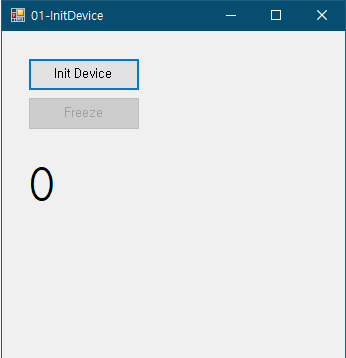
#1 01-InitDevice
01-InitDevice is the first step of program development and is intended to check the connection status between the DSK program and the hardware.
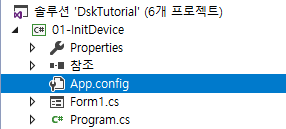
How to Activate the Project:
Right-click "InitDevice" and click “Set as Startup Project” to select it.
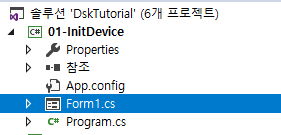
How to Load the UI:
Press "Ctrl+F5" to load the created Form1.cs screen.
UI Screen Configuration Description:
The configuration consists of Init Device and Freeze.
- Init Device: Checks the connection with the equipment. If successfully executed, the counter below will increase.
- Freeze: Enabled once the Init Device connection is established. Click to pause the acquisition.
Important: Please enter the Project code for the equipment before proceeding. Refer to “APPENDIX C” for instructions on entering the Project code.
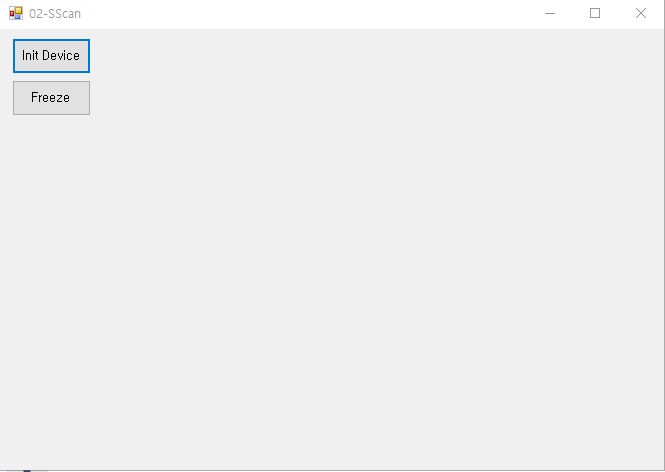
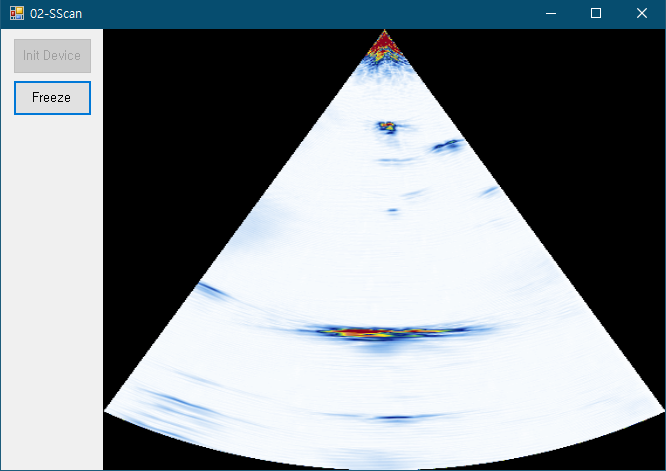
#2 02-SScan
02-SScan is the step where you can check the S-scan image after connecting the equipment.
Activate the project and load the UI screen to see the image below.
UI Screen Configuration Description:
The configuration consists of Init Device and Freeze.
- Init Device: Connects the equipment, and the S-scan image will be displayed upon successful execution.
- Freeze: Click to pause the program.
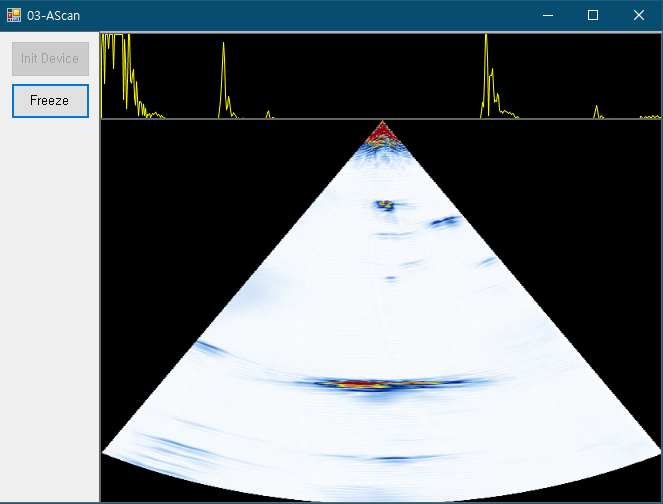
#3 03-AScan
03-AScan is the step where you can check A-scan / S-scan images after connecting the equipment.
Activate the project and load the UI screen to see the image below.
UI Screen Configuration Description:
The configuration consists of Init Device and Freeze.
- Init Device: Connects the equipment, and A-scan / S-scan images will be displayed upon successful execution.
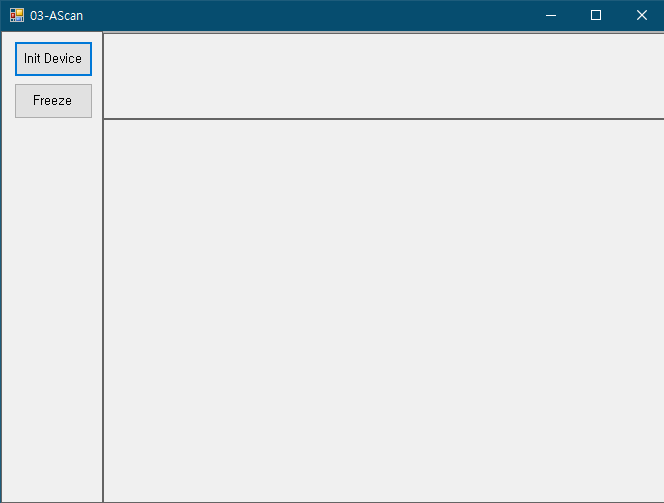
- Freeze: Click to pause the program.
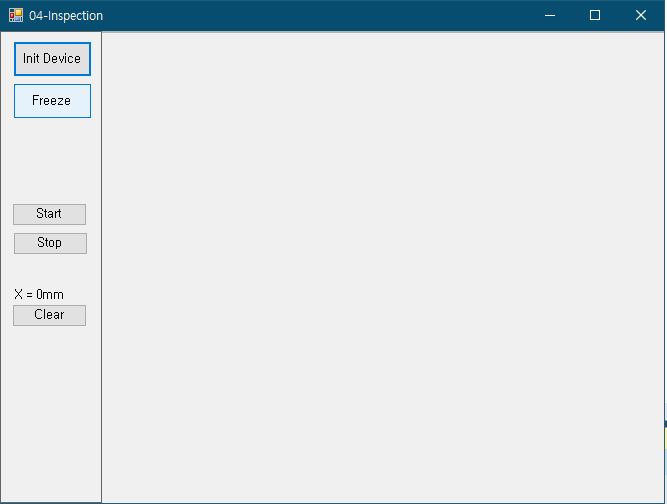
#4 04-Inspection
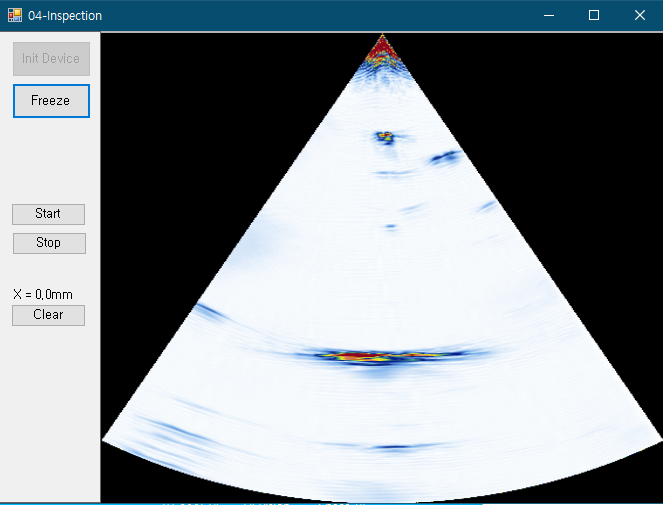
04-Inspection is the step where you can check the S-scan screen and Encoder operation.
Activate the project and load the UI screen to see the image below.
UI Screen Configuration Description:
The configuration consists of Init Device, Freeze, Start, Stop, Clear, and X = 0mm.
- Init Device: Connects the equipment, and the S-scan image will be displayed upon successful execution.
- Freeze: Click to pause the program.
- Start: Checks if Encoder Start applies (no effect on the image).
- Stop: Checks if Encoder Stop applies (no effect on the image).
- X = 0mm: The counter increases when operating the Scan Encoder.
- Clear: Resets the Scan Encoder operation counter.
#5 10-SimplePAUT
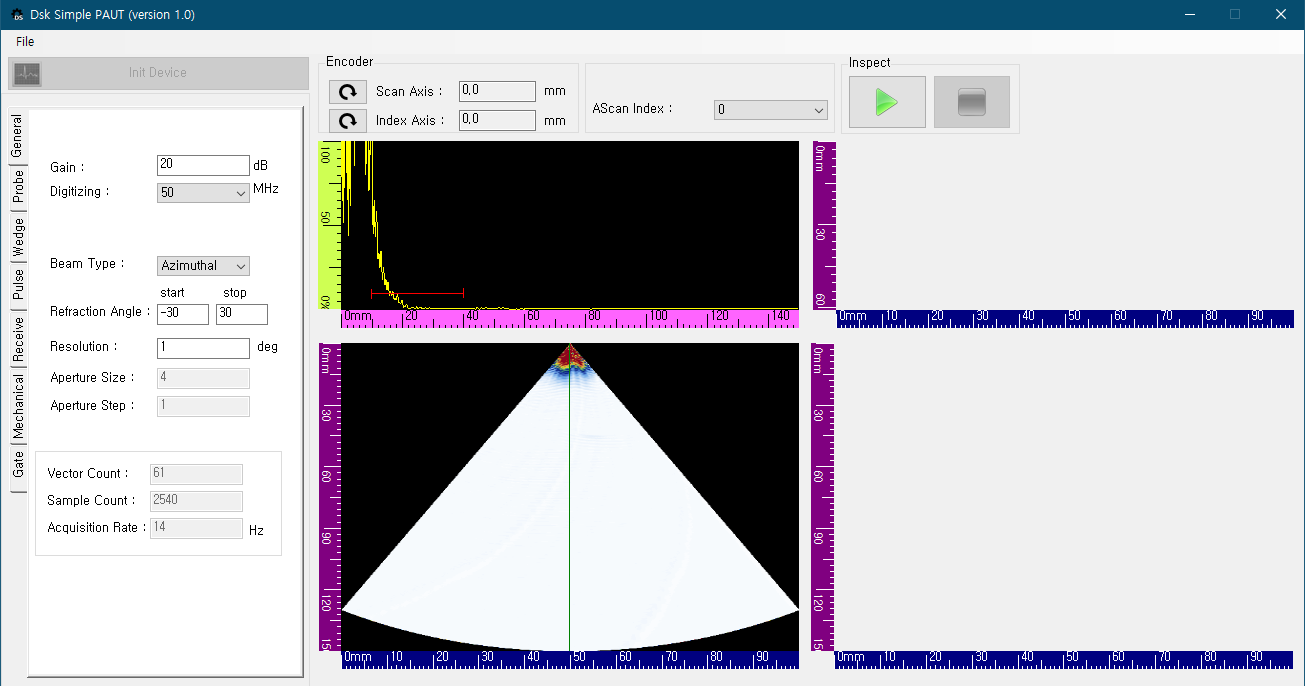
10-SimplePAUT displays the final program with a completed UI, showing A-scan, S-scan, B-scan, and C-scan images.
This is the final stage of DSK, where you can implement images by applying various Parameter values.
Activate the project and load the UI screen to see the image below.
UI Screen Configuration Description:
The configuration consists of Init Device, Encoder, Inspect, Scan Layout, and lists for applying each Parameter value.
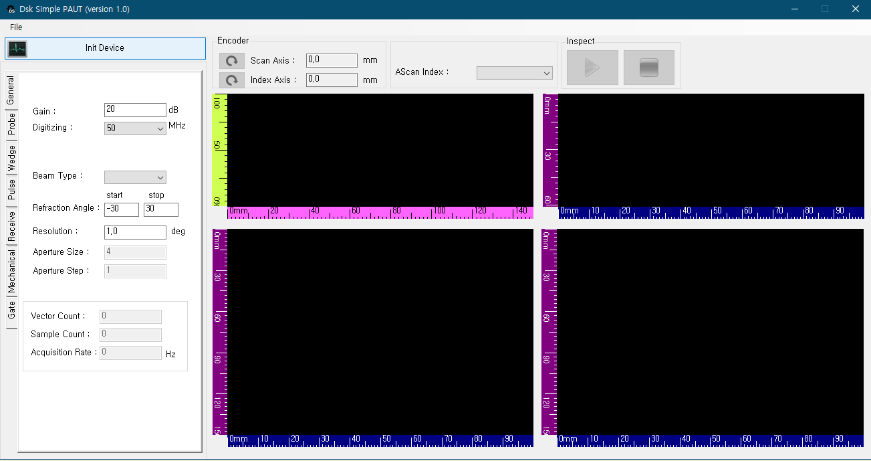
- File: Menu for Load & Save functions.
Important: The path for saving and loading .json files is DskTutorial > Bin > RES > Saves > UserSetup (the user can change this location, and the last saved location is maintained).
- Init Device: Connects to the equipment and displays images.
- Encoder: Configured with Scan and Index Axis. Displays the distance value traveled by the encoder after connection. The icon resets the encoder distance value to 0mm.
- AScan index: Displays the current position of the Vector.
- Inspect: Configured with Start and Stop. Operating the encoder after clicking Start performs C-scan and B-scan data collection. Clicking Stop saves the collected data.
General
This list contains Parameters and information related to the overall image: Gain / Digitizing / Beam type / Refraction Angle / Resolution / Aperture Size / Aperture Step / Vector Count / Sample Count / Acquisition Rate.
- Gain: Adjusts the signal level.
- Digitizing: Affects the sample count and selects the data conversion frequency.
- Beam type: Selects between Azimuthal and Linear.

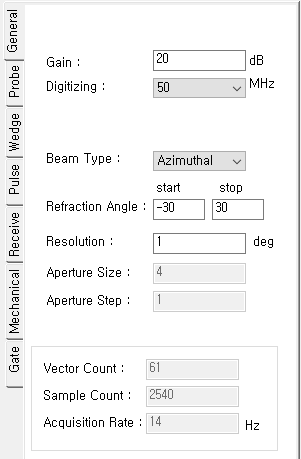
- Refraction Angle Start, Stop: Sets the angle range.
- Resolution: Checks images by subdividing or grouping the angle range (enabled when Azimuthal is selected).
- Aperture Size: Enabled in Linear type, sets the Vector Group Count (e.g., if set to 16, it proceeds sequentially as 1
16, 217, 3~18…). - Aperture Step: Enabled in Linear type, sets the Vector Group Count (e.g., if set to 16, it proceeds as 1
16, 1732, 33~45…). - Vector Count: The calculated number of vectors for the configured range.
- Sample Count: The number of Sample Data points.
- Acquisition Rate: Represents the sampling speed.
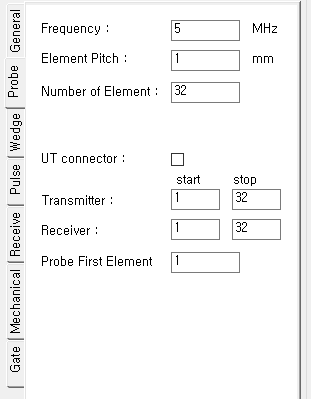
Probe
This list is for entering and configuring Probe information: Frequency / Element Pitch / Number of Elements / UT connector / Transmitter / Receiver / Probe First Element.
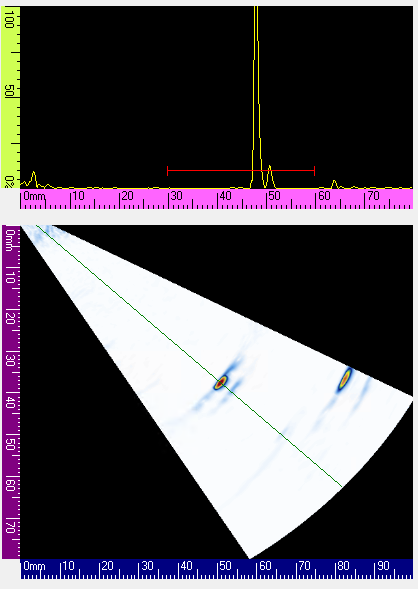
- Frequency: Enter the frequency of the probe.
- Element Pitch: Enter the pitch between probe elements.
- Number of Elements: Enter the number of probe elements.
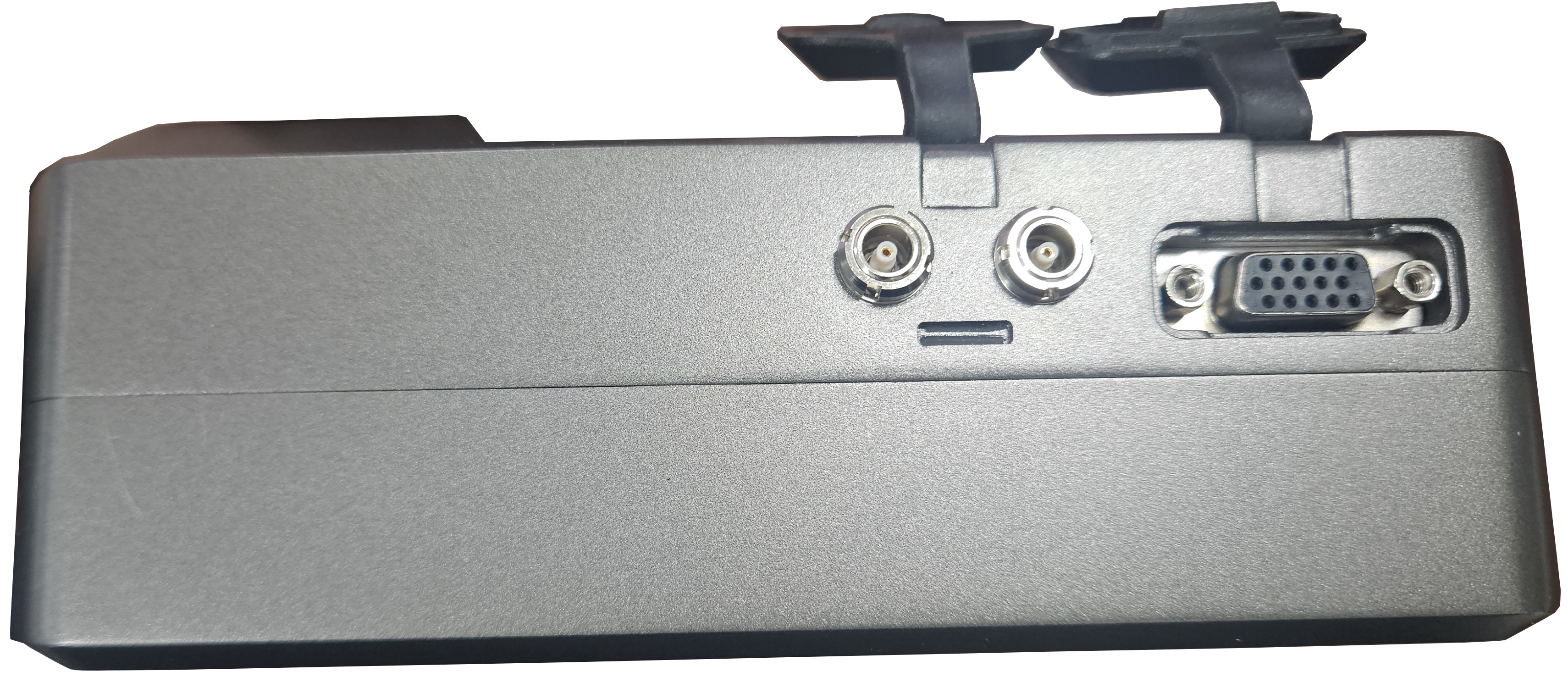
- UT connector: Checkbox to enable Conventional UT (only applies to equipment with UT Ports, refer to “APPENDIX G” for details).
- Transmitter Start, Stop: Sets the start and end values of transmit elements.
- Receiver Start, Stop: Sets the start and end values of receive elements.
- Probe First Element: Sets the starting position of elements.
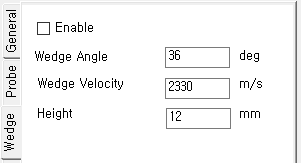
Wedge
This list is for entering Wedge information: Enable / Wedge Angle / Wedge Velocity / Height.
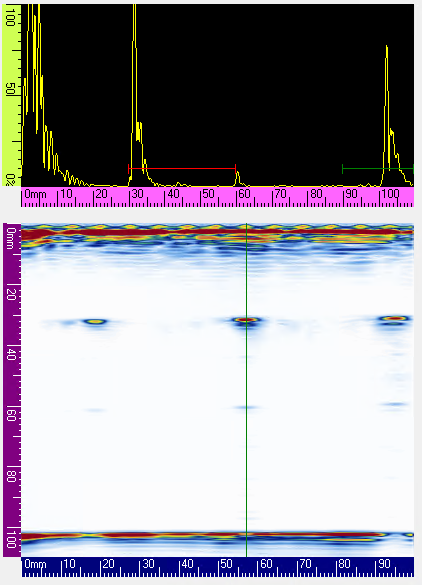
- Enable: Checkbox to enable the Wedge.
- Wedge Angle: Enter the Wedge Angle.
- Wedge Velocity: Enter the Wedge Velocity.
- Height: Enter the Wedge Height information.
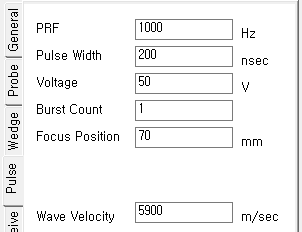
Pulse
This list is for configuring the pulse settings: PRF / Pulse Width / Voltage / Burst Count / Focus Position / Wave Velocity.
- PRF: Enter the desired value (varies according to minimum/maximum depth).
- Pulse Width: Determined by the Probe Frequency value (Calculation: 1 / 5(5MHz) = 0.2 (200ns)).
- Voltage: Enter the desired value (Range: 25~200V).
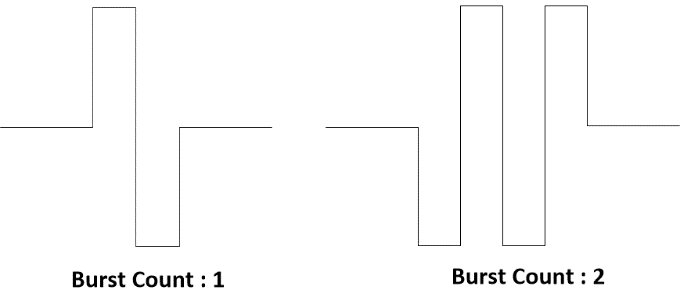
- Burst Count: Set the Burst wave count, which is an advantage of Bipolar Waves (Range: 1~3).
- Focus Position: Enter the desired focus position.
- Wave Velocity: Enter the wave velocity in the material.
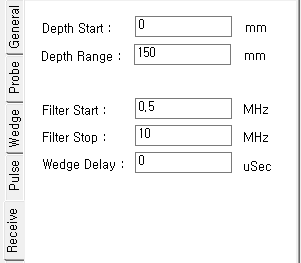
Receive
This list is for configuring the receive signal settings: Depth Start / Depth Range / Filter Start / Filter Stop / Wedge Delay.
- Depth Start: Sets the start of the scan range.
- Depth Stop: Sets the end of the scan range.
- Filter Start / Stop: Based on the Probe Frequency, sets the desired filter range.
- Wedge Delay: Sets the desired Wedge Delay value.
Mechanical
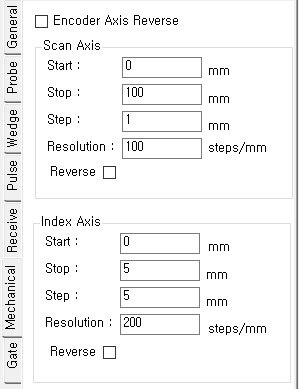
This list is for configuring the Scanner Encoder: Encoder Axis Reverse / Scan Axis (Start, Stop, Step, Resolution, Reverse) / Index Axis (Start, Stop, Step, Resolution, Reverse).
- Encoder Axis Reverse: Checkbox to swap the positions of the Scan Axis and Index Axis.
Scan Axis
- Start: Sets the starting position of the Scanner.
- Stop: Sets the ending position of the Scanner.
- Step: Sets the interval of position values.
- Resolution: Enter the resolution value of the Scanner.
- Reverse: Checkbox to reverse the scanning direction.
Index Axis: Same descriptions as the Scan Axis.
Gate
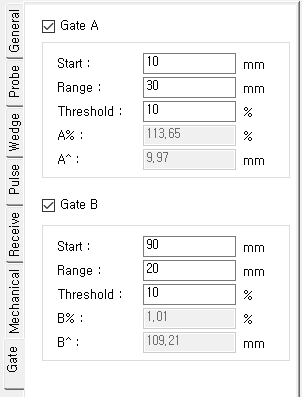
This list is for adjusting signal information and gate positions: Gate A (Start, Range, Threshold, A%, A^) / Gate B (Start, Range, Threshold, B%, B^).
- Checkbox: Enabled when check box is selected.
- Start: Sets the starting position of the Gate.
- Range: Sets the range value of the Gate.
- Threshold: Sets the threshold height of the Gate.
- A% / B%: Displays the Amplitude value of the signal captured in the gate.
- A^ / B^: Displays the maximum Peak value of the signal captured in the gate.
4. ULTRASOUND ENGINEERING
This section defines the basic UE (Ultrasound Engineering) parameters used in DSK.
Vector
In ultrasonic non-destructive testing (NDT), a Vector is defined as ultrasonic data collected at a specific angle and range.
Vector Count Calculation
The formula to calculate the number of vectors is as follows:
Vector count = (Refracted angle end – Refracted angle start) / Resolution + 1- The maximum range of the refracted angle is -85 to 85 degrees, and the resolution can be set from 0.5 to 2.
Example:
[Condition] Refracted angle range is Start 10 degrees, Stop 20 degrees, and Angle Resolution is 2.0. Solving with the formula yields a total Vector count of 6.
Ex. (20 - 10) / 2.0 + 1 = 6 (Vector Count)
Sample
An analog signal collected from a probe is digitized (sampled) through an ADC (Analog-Digital Converter) to generate a single Sample data point.
Ex. When setting the Digitizing Frequency to 50MHz, Sample data is converted every 20e-9 (nsec) (1 second / 50MHz).
Sample Count Calculation
Sample count = Range (mm) / ( US velocity / Sample frequency / 2 )Note: The final obtained Sample Data represents ultrasonic transmit and receive data, so it is divided by 2.
Ex. Under an ultrasonic velocity of 5900 m/s, the Sample Count calculation for 100 mm is as follows:
1694 = 100 mm / (5900 m/s / 50 MHz / 2)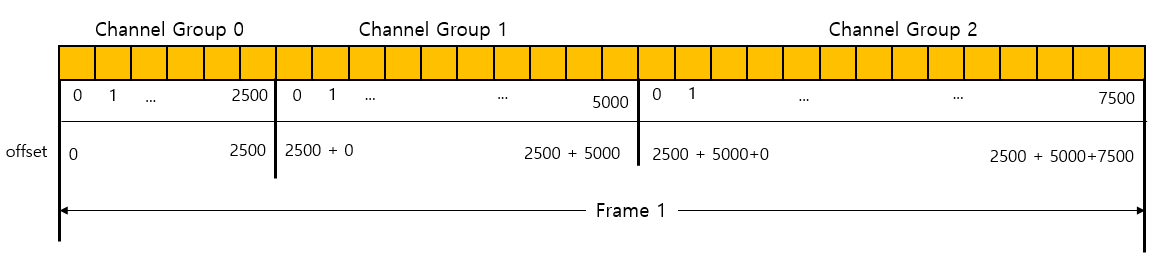
Digitizing Index
Digitizing (or Sampling) Frequency represents how detailed the data conversion is during ADC. In DSK, it can be configured between a maximum of 50MHz and a minimum of 3.125 MHz.
DSK configures these values in an internal Table, and the Digitizing Index below represents the Index number for that table.
| Digitizing Frequency | Digital Index |
|---|---|
| 50 MHz | 0 |
| 25 MHz | 1 |
| 12.5 MHz | 3 |
| 6.25 MHz | 7 |
| 3.125 MHz | 15 |
Frame and Channel Group
Grouping multiple Vectors is called a Channel Group. Each Channel Group can be configured with different values for Range, Gain, and Pulse Width, and the DSK equipment collects ultrasonic Vector data in the index order of Channel Groups. Finally, all Vectors matching the configured Channel Groups represent 1 Frame. When acquisition for 1 Frame is complete, the Rx Callback is called to process the collected data.
| Channel Index | Refracted Angle | Vector Count |
|---|---|---|
| Channel 0 | 0~4 | 5 |
| Channel 1 | 10~12 | 3 |
| Channel 2 | 45 | 1 |
| Channel 3 | 30~31 | 2 |
Frame Creation
1 Frame consists of data corresponding to the configured number of Channel Groups. It is stored sequentially according to the Channel Group Index, matching the size of BackEndSampleCountPerVector * Vector count for each Channel Group.
For example, if Channel Groups 0, 1, and 2 each have a Vector Count of 1, and the BackEndSampleCountPerVector count is 2500 for Channel Group 0, 5000 for Channel Group 1, and 7500 for Channel Group 2: Index 0 of the 1D Array stores the 0th sample data of the 0th vector of Channel Group 0. After 2500 samples, Index 2500 stores the 0th sample data of the 0th vector of Channel Group 1. To use data from a specific Channel Group, apply an offset corresponding to the Vector Count * BackEndSampleCountPerVector count of the preceding Channel Groups.
Pulse
Bipolar Pulse wave type
An Unipolar Pulse Wave is a pulse wave whose polarity does not change over time, whereas a Bipolar pulse wave is a pulse wave whose polarity changes over time, similar to a Sine Wave. Conventional ultrasonic testing equipment used Unipolar pulse waves because they were easier to implement in hardware design. However, DSK equipment applies medical technology to use Bipolar Pulse Waves.
This allows setting the Burst Count as desired, which is an advantage of Bipolar Waves, to improve defect detection capabilities in areas with high attenuation.
Pulse Width Formulas and Figures
#1 Unipolar pulse width:
The Unipolar pulse width calculation is the inverse of the frequency divided by 2, and the formula is as follows:
Unipolar Pulse width = 1 / Pulse Frequency (Hz) / 2Ex. Pulse width calculation for a 5 MHz pulse frequency:
1 / 5 MHz / 2 = 100 (ns)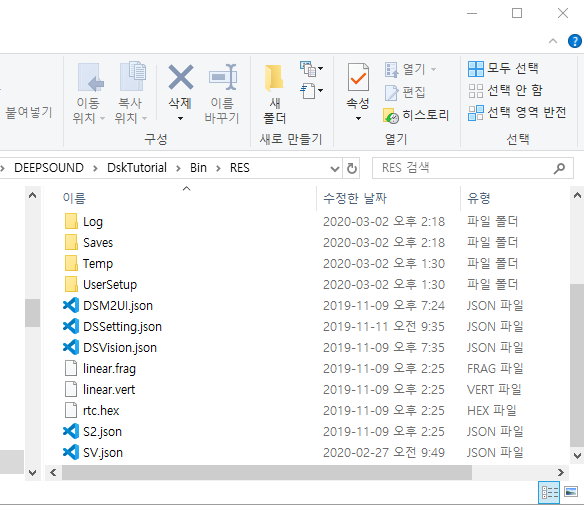
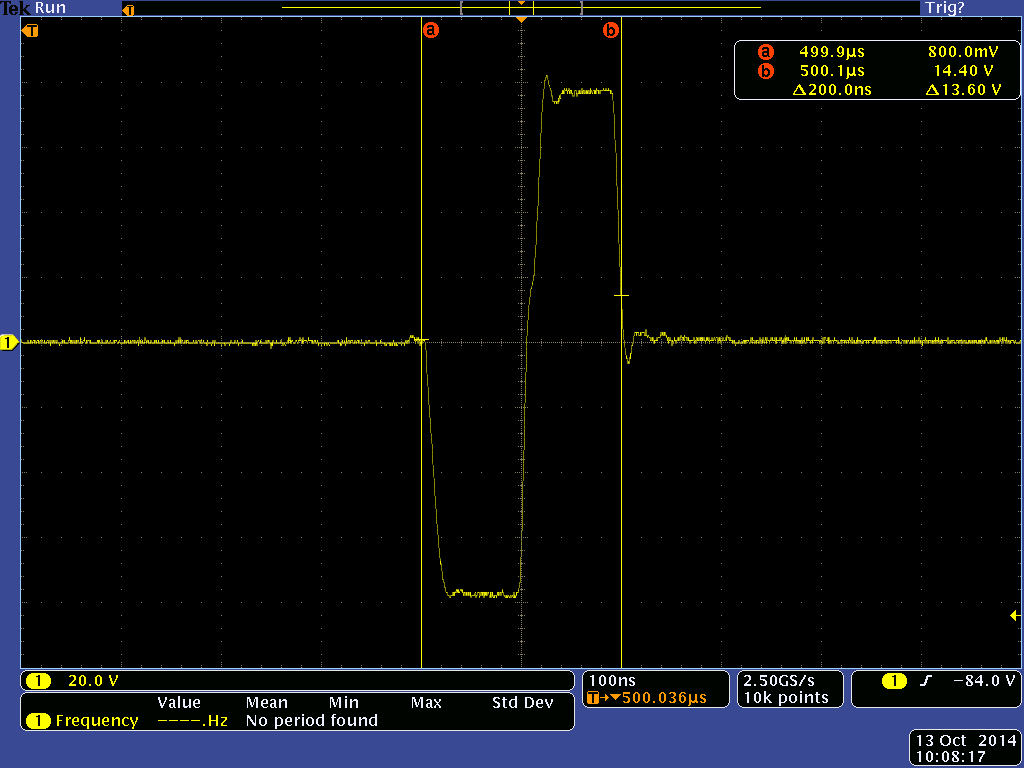
#2 Bipolar pulse width:
The Bipolar pulse width calculation formula is as follows:
Bipolar Pulse width = 1 / Pulse frequency (Hz)Ex. Pulse width calculation for a 5 MHz pulse frequency:
1 / 5 MHz = 200 (ns)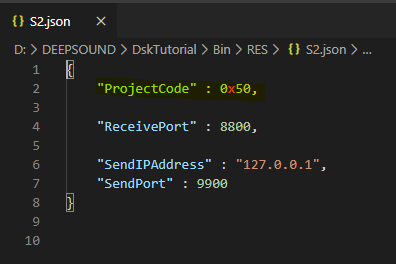
Burst Count
Burst is a method of generating and collecting wave signals by increasing the number of counts in a single pulse wave. Since the echo pulse is collected more strongly in Rx, it can be used when collecting data in sections with high ultrasonic attenuation.
In the DSK program, you can set the Burst Count from 1 to 5.
Focus Type
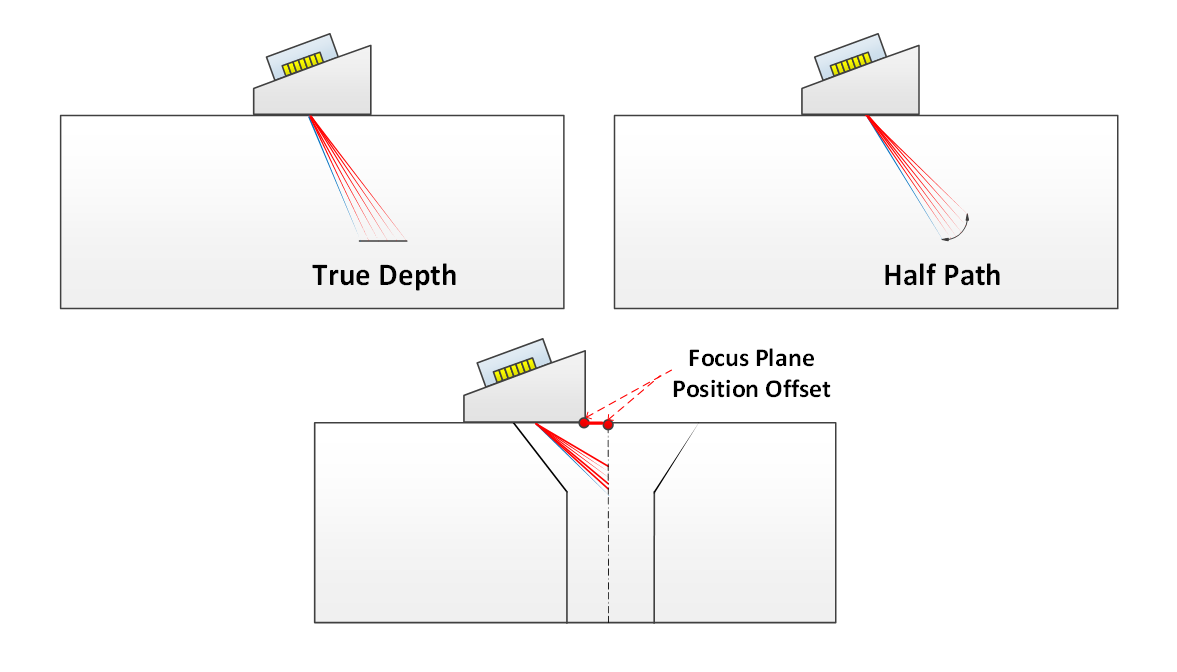
Focus Type represents the Focal Law Focus Position setting method for each Vector. There are four Focus Types: True Depth, Half Path, Auto Focus, and Projection.
- True depth: All focal laws focus based on the Depth value.
- Auto focus: Auto Focus can only be set for Pitch & Catch Probe Types and is applied by calculating the position physically focused by the Roof Angle.
- Half path: All focal laws set the focus based on the Sound path Distance value.
- Projection: All focal laws set the focus according to a predefined focus plane (Index / Scan offset).
| Beam Type | Index |
|---|---|
| FOCUSTYPE_TRUEDEPTH | 0 |
| FOCUSTYPE_AUTOFOCUS | 1 |
| FOCUSTYPE_HALFPATH | 2 |
| FOCUSTYPE_PROJECTION | 3 |
Focal Plane Position Offset
Represents the position of the Focal Plane (from the wedge reference point to the focal plane offset). The unit is set in mm.
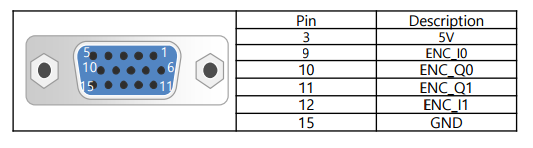
Scan/Index Encoder
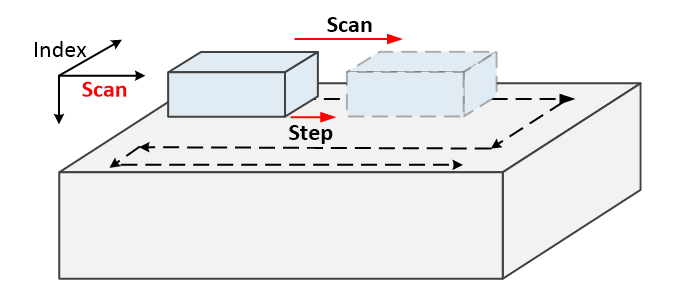
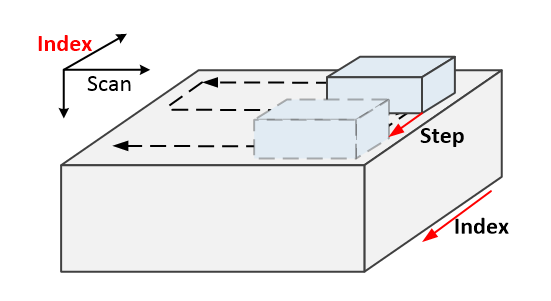
The figure below shows how the Scanner (Encoder) moves in the Scan axis and Index axis directions.
In the DSK program, you can configure the start/stop and resolution of the Encoder in detail:
- Scan encoder start: Defines the starting position of the Scan Encoder within the acquisition range. Unit: mm (e.g., 100, 500…)
- Scan encoder stop: Defines the stopping position of the Scan Encoder within the acquisition range. Unit: mm (e.g., 100, 500…)
- Scan encoder step: Defines the Step unit number of the Scan Encoder within the acquisition range. (e.g., 1.0, 2.0, 2.54…)
- Scan encoder resolution: Defines the number of pulses per mm of the Scan Encoder. (Step / mm) (e.g., 20.0, 5210.8…)
5. APPENDIX
5.1 APPENDIX C: PROJECT CODE Description and Input Method
The Project code assigned to each equipment model is different. Refer to it when running the DSK program.
| SDK Equipment Model | Project Code |
|---|---|
| P5 | 0x50 |
| P1 | 0x70 |
| S3 ( 64CH ) | 0x60 |
| S3 mini 2 Port | 0x51 |
| S3 Mini 4 Port | 0x52 |
| P3 ( 32CH ) | 0x90 |
| P3 ( 16CH ) | 0x91 |
| R3 | 0x80 |
How to Register the PROJECT CODE per Equipment:
Each equipment model has a unique Code Name, and the hardware runs by identifying this code.
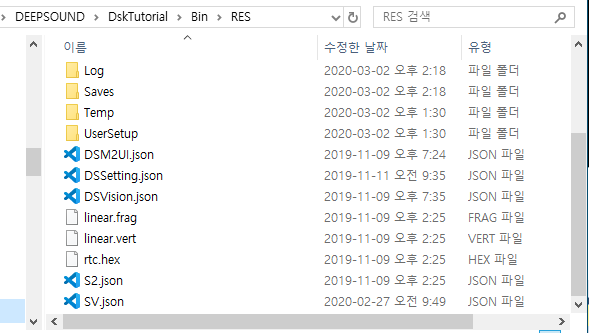
The Project code is entered when running the S2.json file. Check the figures below for the location and method.
#1 S2.json File Path Location
The S2.json file is located in the DskTutorial > Bin > RES > Saves > Setup path directory. Open the S2.json file to proceed.
#2 How to Modify in S2.json File
Open S2.json and change the "ProjectCode" value to match your equipment.
After editing, save and close the file, then run DSK.
Copyright © 2026, SEONGSANLAB Co., Ltd.
The copyright of this manual belongs to SEONGSANLAB Co., Ltd., and unauthorized reproduction or transmission is prohibited.
www.dspaut.com